How to find draft_content.json in CapCut
The quickest method is to check the project path in CapCut instead of searching through folders one by one.
Method 1: check the project path in CapCut
- 1Open the correct project
Launch the CapCut desktop editor and open the project that contains the captions you want to export.
- 2Check the Details panel
On the right, open Details and locate the Path field. The labels may remain in English in some CapCut versions.
- 3Open the displayed path
Copy the Path into File Explorer on Windows or Finder on macOS to open this project's draft folder.
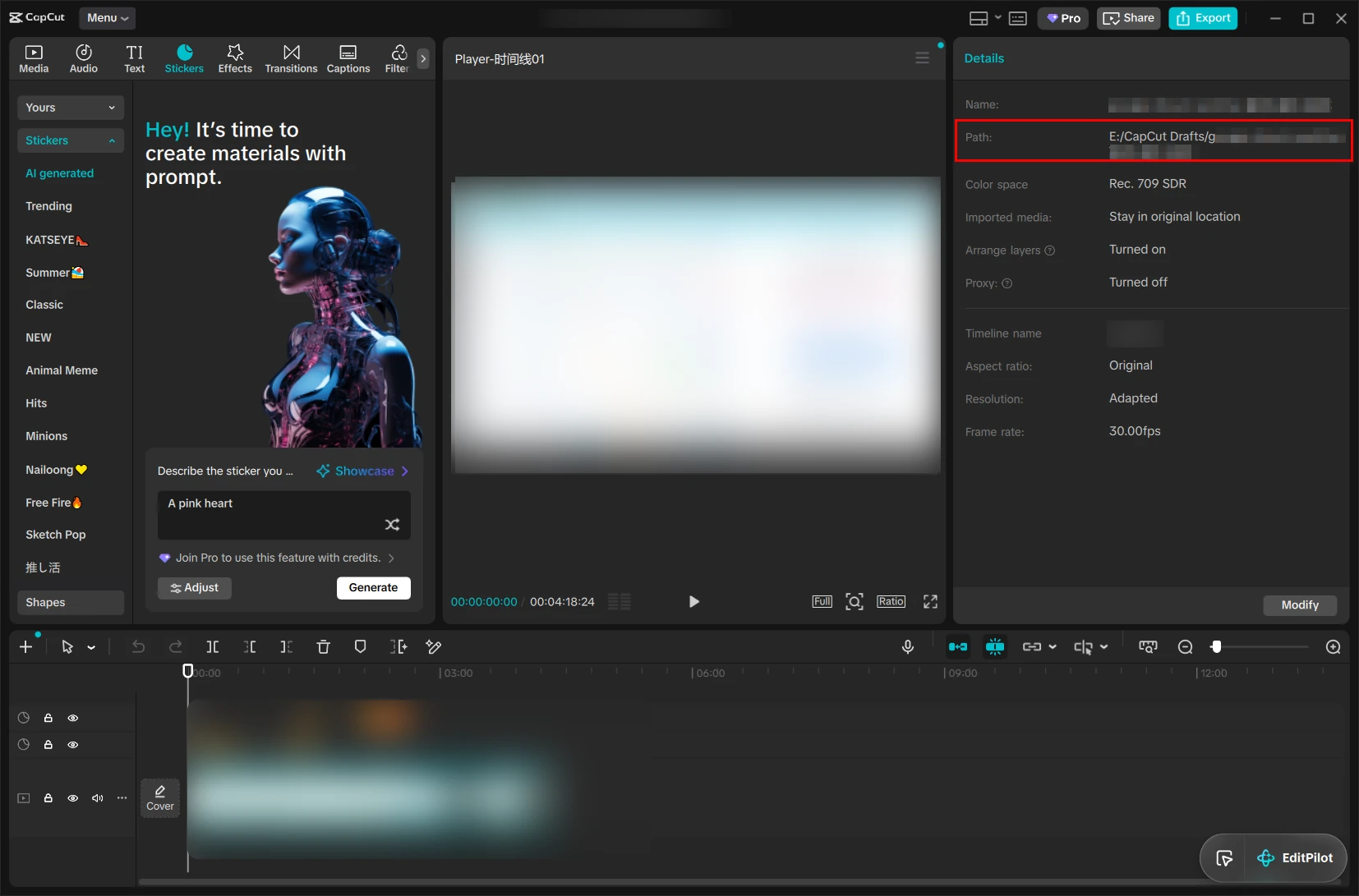
What should you look for in the folder?
Open the project directory shown in Path and look for either of these files:
draft_content.jsonPreferred: usually contains caption text and timeline datadraft_info.jsonAlso supported by some CapCut versions and draft structuresReturn to the exporter, choose “Choose project folder”, and select this exact folder—not the parent folder that contains several projects.
Is draft_content.json the CapCut SRT file source?
It is a project-data source, not a ready-made SRT file. The JSON can contain caption materials, timeline tracks, segment timing, and references used by the CapCut project. A converter must match the visible caption text to real timeline segments before it can write reliable SRT timecodes.
How JSON-to-SRT conversion works
This exporter reads the selected project locally, finds supported text materials, follows their timeline references, sorts matched captions by start time, and then creates SRT blocks. It does not rename JSON to SRT, invent timing for unmatched text, or transcribe the video again.
Method 2: check the default draft locations
If the Path field is unavailable, try the locations below. If you changed CapCut's draft location, always use the Path shown in Details.
%LocalAppData%CapCutUser DataProjectscom.lveditor.draft~/Movies/CapCut/User Data/Projects/com.lveditor.draft